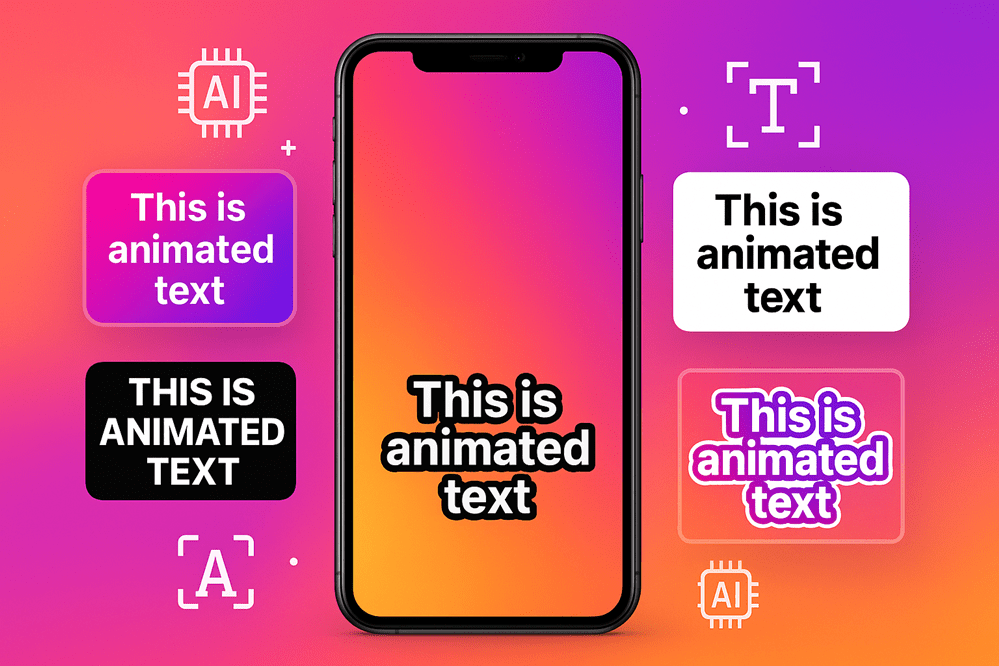
Did you know that 85% of videos on Facebook are watched on mute?
That means most people are scrolling, watching, and deciding whether to keep your video on, all without ever turning the sound on.
And it’s not just Facebook. Think about your own habits on YouTube Shorts, TikTok, or Instagram Reels. How often do you scroll with the sound off until something really grabs your attention? That “something” is often captions.
Captions don’t just help people watch, they help them stick around. They keep your message clear, boost engagement, and make your content accessible to a wider audience. Plus, they give you an SEO boost by letting search engines understand what’s being said in your videos.
The problem? Manually adding captions is a pain. You’d have to transcribe, time-stamp, and format everything, which eats up hours you could spend creating.
The good news though is that AI caption tools can do the heavy lifting for you. These tools automatically generate captions, style them to fit your brand, and let you publish faster. Whether you’re a YouTuber, podcaster, or TikTok creator, there’s an AI tool out there that fits your workflow.
I tested a bunch of these AI caption tools, and in this guide, I’ll break down the 8 best ones I found – from all-in-one editors to short-form specialists. By the end, you’ll know exactly which tool will save you time, keep your audience hooked, and make your videos more watchable.
This post may contain affiliate links. TrialBear earns commissions at no extra cost to you when purchases are made through links on this page. For more info, visit the disclosure page.
What Separates Good AI Caption Tools
Not all caption generators are created equal. Some give you a quick transcript that’s maybe 60% correct, while others give you polished captions that look like they came from a pro editor. If you’re going to trust AI with your content, here’s what really makes a tool worth using.
1. Accuracy matters most
If your captions butcher names, slang, or industry terms, your viewers notice. The best tools are actually pretty good at context and will accurately transcribe brand names, technical jargon and more.
The better they nail speech-to-text, the less time you’ll spend fixing mistakes.
2. Customization is key
Captions shouldn’t just say what’s happening – they should fit your brand. Good tools let you adjust fonts, colors, timing, and even add emojis or dynamic effects.
3. Speed saves you time
A caption tool should keep up with your workflow. Waiting an hour for subtitles on a 10-minute video isn’t realistic. The best AI tools turn around captions in minutes.
4. Platform fit makes a difference
TikTok-style captions with bold colors and emojis won’t always work on YouTube or LinkedIn. Great tools give you options tailored for different platforms.
5. Export flexibility
Sometimes you want hardcoded captions burned into the video. Other times you need an SRT file you can upload to YouTube. A good tool handles both, and ideally supports multiple languages, too.
6. Value for money
Free tools can work in a pinch, but they often limit features or add watermarks. The best ones balance cost with quality, giving you pro-level captions without draining your budget.
When a tool checks these boxes, you know you’re not just saving time, you’re also putting out videos that keep people watching longer.
How I Tested These AI Caption Tools
When it came to listing the best AI caption tools, I didn’t just read sales pages and call it a day. To really see which caption tools deliver, I tested 16 different platforms head-to-head.
Some didn’t make it and I even got surprised with some that I thought would either do really well, and some that I didn’t expect much from but ended up performing better than I thought.
Here’s how I did it:
- Same videos across all tools – I uploaded three videos of different lengths, different speaking styles, so every tool had the exact same challenge.
- Word-for-word comparison – I matched each transcription against the actual audio, checking for spelling, punctuation, sentence structure, and smart formatting like capitalization and line breaks.
- Sync accuracy – I looked at how well the captions lined up with the audio, especially during fast speech.
- Background noise and overlapping dialogue – A lot of real-world content isn’t recorded in a studio. I paid attention to how each AI handled noisy clips and moments where two voices overlapped.
- Speaker detection – Did the tool know who was talking when multiple people spoke? Or did it mash everything into one block of text?
Beyond accuracy, I also tested for features that make captions usable in the real world:
- Ease of editing – How quickly could I fix mistakes or polish lines?
- Customization – Fonts, colors, animation styles – things that help captions stand out and match your brand.
- Language support – Some creators need captions in English only, but others reach global audiences. I checked how many languages each tool could handle.
- Export formats – The best tools give you options: SRT files, burned-in captions, and platform-specific formats for YouTube, TikTok, and beyond.
This process gave me a clear view of which AI tools are fast and reliable, and which ones will cost you more time fixing errors than they save.
In the end, I narrowed the list down to the 8 tools that stood out for accuracy, ease of use, and features creators will actually use. These are the ones worth your time if you want captions that look professional without the headache of doing it all manually.
1. Submagic
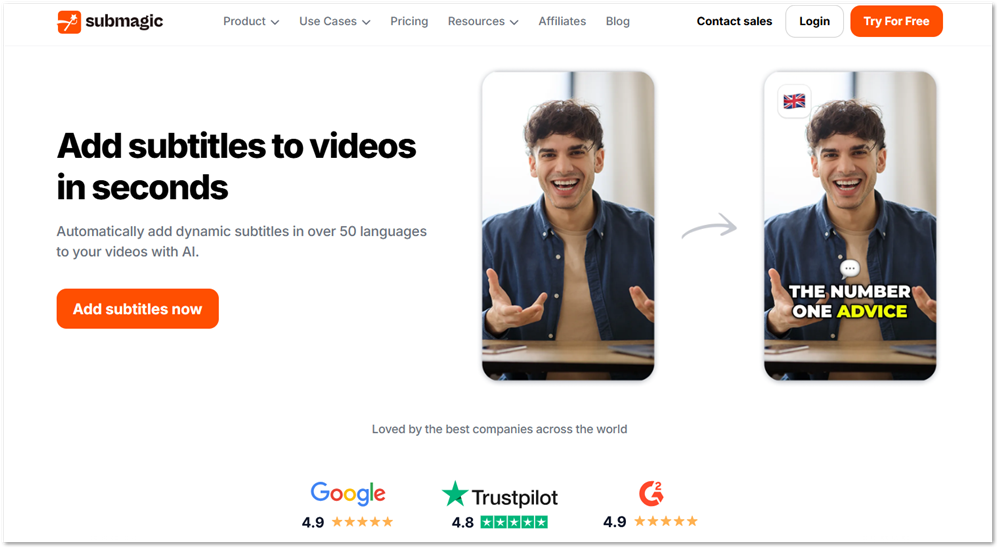
Submagic was hands down the best AI caption tool I tested. I went in curious but came out genuinely impressed.
The dashboard is simple – you log in and the “Generate Captions” button is front and center. Compared to some other apps, I didn’t have to hunt around to figure out how to get started.
Accuracy was where Submagic really surprised me. For the test video, it nailed everything – spelling, punctuation, even brand names. The site itself claims 98.6% accuracy, but in my case, it felt closer to 100%. I also liked how it highlights low-confidence words in red, even when they turned out to be correct. That extra transparency makes it easy to double-check.
On the creative side, Submagic lets you style and customize captions with ease. It supports 50+ languages, can translate captions, and even detects multiple speakers, color-coding them for clarity. Processing was also lightning fast – I had results in seconds.
The only downside for me was the free plan limit. You only get up to 5 minutes per video, so for longer content you’ll need a paid plan. Also, while the Business plan includes logo and branding options, I wish they offered this on at least the Pro tier.
As a video creator tool, there are also lots of AI extras – get short clips, combine clips, generate b-roll, eye contact correction, and audio clean-up.
Pros
Cons
Pricing: Starter $19/month, Pro $39/month, Business + API $69/month. Discounted annual plans available.
Best For: Creators who want a powerful, fast, and highly accurate caption tool with customization options right out of the box.
My Recommendation: If you only test one AI caption tool, make it Submagic. It’s the most accurate and feature-rich option I came across, and a clear standout for creators who want professional captions without the hassle.
2. Veed.io
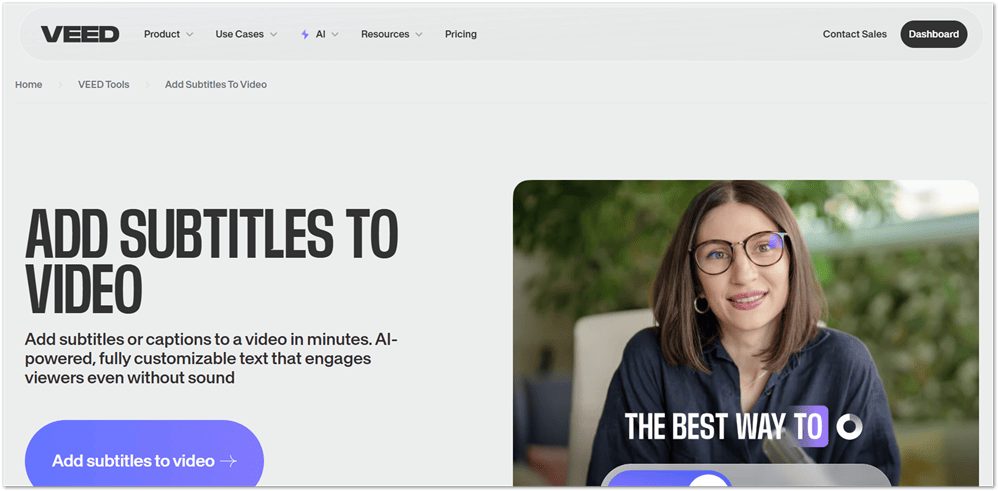
Veed.io is probably the most well-known name on this list, and it earned its reputation for good reason.
Getting started is easy. From the dashboard, you hover over “Create,” look under “Enhance your videos,” and select “Add auto subtitles.” From there you can upload a file directly or import from a URL, which is a nice touch if you want to pull in a video you’ve already published somewhere.
Accuracy was strong across my test. Like Submagic, Veed highlights words it isn’t fully confident about, so you know exactly where to focus when proofreading. In practice though, I didn’t find many errors at all – it handled speech cleanly and consistently.
Where Veed really holds its own is customization. The styling options are solid, and one feature I particularly liked is that it uses different caption styles for each speaker automatically. If you’re working with interview-style content or any video with more than one person talking, that saves you a lot of manual work. It supports 125 languages too, which puts it ahead of most tools on this list for international creators.
Export options cover the main formats you’d need – hardcoded subtitles burned into the video, plus SRT, VTT, and TXT files for uploading to platforms separately.
The free plan does add a watermark, so for anything you’re publishing professionally you’ll want a paid tier.
Pros
Cons
Pricing: Lite $19/month, Pro $49/month, Enterprise custom. Annual billing available.
Best For: Creators who want accurate, well-styled captions with strong multi-speaker support and flexible export options.
3. Vizard
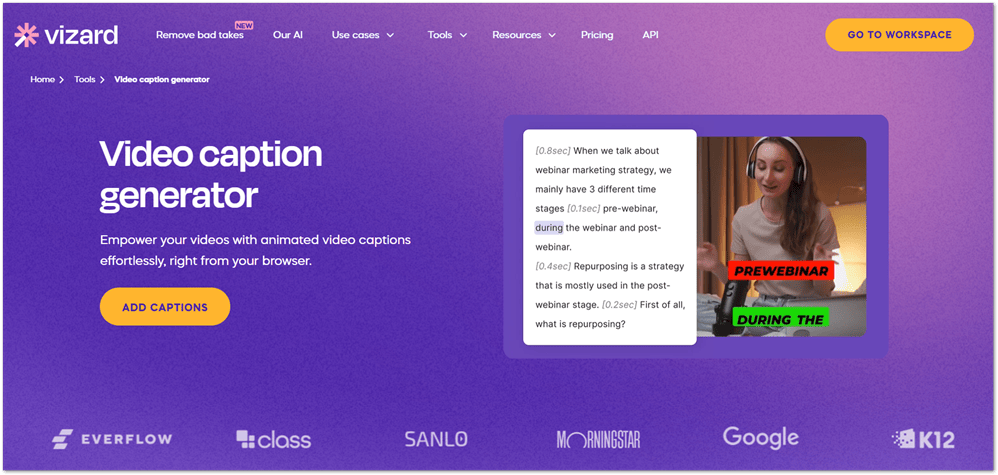
Vizard stands out from the moment you go to import a video. Most tools give you a basic upload button – Vizard gives you 11 different URL import options, including YouTube, Facebook, TikTok, Loom, and Dropbox plus you can also import from Zoom, record video directly, or just upload a file the traditional way. If you’re repurposing content that’s already published somewhere, that flexibility is genuinely useful.
Accuracy was strong in my testing, on par with the top tools on this list.
And like Veed, you have two ways to work with your captions once they’re generated. You can edit the transcript as a document, which feels natural if you’re used to working in a word processor, or switch to the subtitle editor tab if you prefer a more traditional caption-editing view. Either way, the process is clean and straightforward.
Customization options are solid, and you can download your transcript as a TXT or SRT file depending on what you need.
The free plan gives you 60 AI credits on signup, refreshed every month, where one credit equals one minute of video. That’s actually a reasonable amount for light use.
Pros
Cons
Pricing: Free plan available. Creator $29/month, Business $39/month. 50% off with annual billing.
Best For: Creators who repurpose content across multiple platforms and want flexible import options alongside accurate, customizable captions.
4. OpusClip
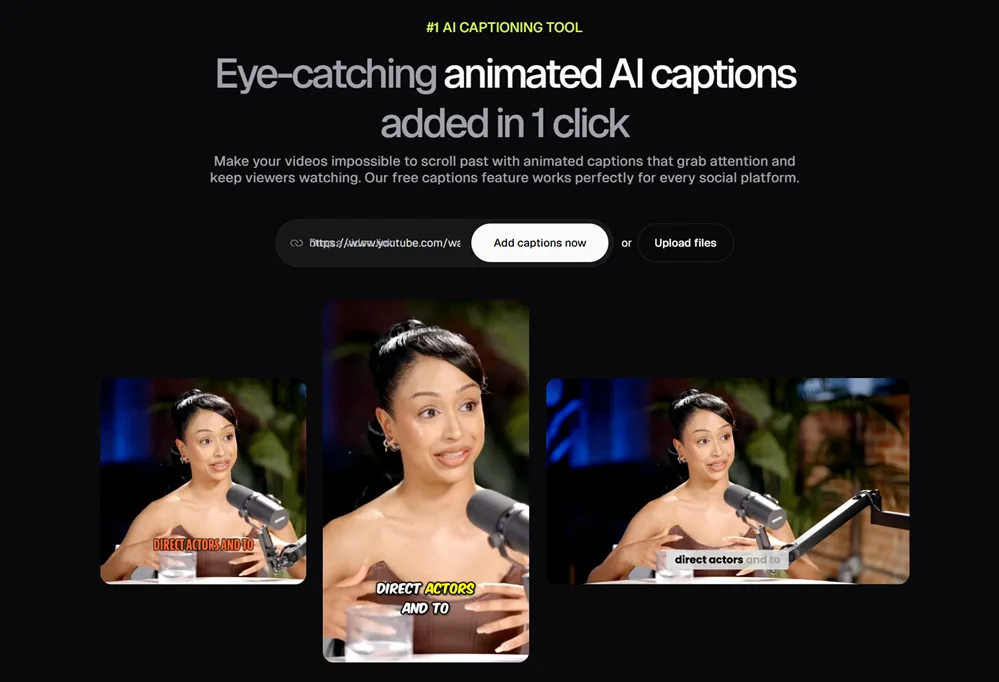
OpusClip is primarily known as an AI video clipping tool – you feed it a long-form video and it finds the best moments to turn into short clips for TikTok, Reels, or YouTube Shorts. But captions are a core part of what it does, not an afterthought.
You can bring video in 12 different ways via URL, including YouTube and Zoom, upload a file directly, or import from Google Drive. Once your video is processed, OpusClip adds AI animated captions automatically, with smart subtitle styling built right into the workflow.
Customization is strong. You get caption templates optimized for different platforms, so what you put on a TikTok looks different from what goes on a YouTube Short, without you having to manually adjust everything. It supports captions in 20+ languages, which is solid for creators with international audiences.
The extra features are genuinely useful too. AI B-roll, speech enhancement, filler and silence removal, and a built-in social media scheduler all sit alongside the captions in one place. If you’re already creating short-form content, having all of that under one roof saves a lot of switching between apps.
There’s a free plan available, plus a 7-day free trial of the paid plans with no credit card required.
Pros
Cons
Pricing: Free plan available. Starter $15/month, Pro $29/month. Annual billing available on Pro.
Best For: Short-form creators who want AI captions built into a full clipping and publishing workflow.
5. Descript
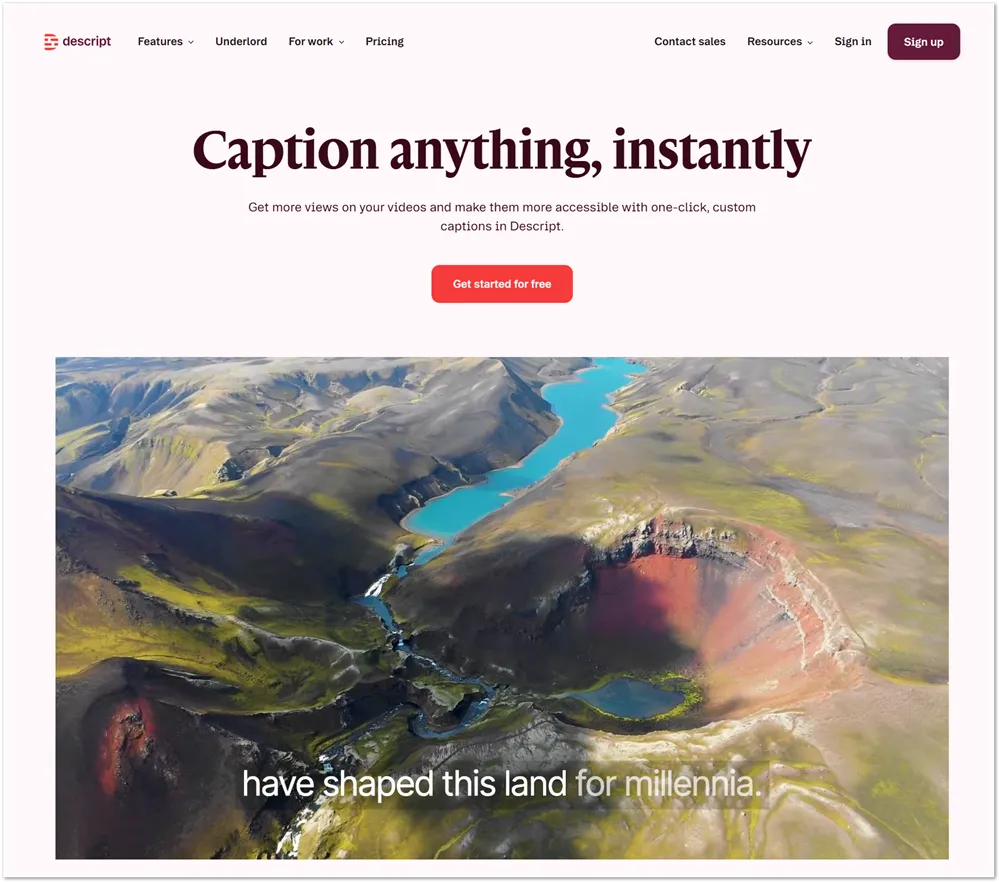
Descript is a different kind of tool.
While most caption apps treat transcription as a feature, Descript builds its entire editing experience around it. You upload your video, it generates a transcript, and from there you edit your video by editing the text. Delete a word from the transcript and it disappears from the video. It’s a genuinely clever approach that makes the editing process feel less technical.
For captions specifically, the feature set is strong. You get three caption display styles — Classic (line by line), Clean (word by word), and Karaoke (which highlights the active word as it’s spoken). You can customize fonts, colors, sizes, backgrounds, and positioning, and save a consistent style across all your videos.
Export options include hardcoded captions burned into the video, or separate SRT and VTT files. It also handles speaker detection and supports transcription in 25 languages with translation into 20+.
Where Descript falls short compared to the other tools on this list is accuracy. The platform itself claims around 95%, and in my testing that felt about right, which means you will be catching and fixing errors. The other tools I tested generally performed better, so if accuracy is your top priority, Descript isn’t the strongest option here.
There’s also the pricing situation to be aware of. Descript overhauled their billing model in late 2025, moving from simple transcription hours to a media minutes and AI credits system. Credits get used up by AI features like filler word removal and Studio Sound, and once they’re gone you need to buy top-ups. It adds a layer of unpredictability that wasn’t there before, and long-time users haven’t been happy about it.
Pros
Cons
Pricing: Free plan available. Hobbyist $16/month, Creator $24/month, Business $40/month (annual billing).
Best For: Podcasters and video creators who want text-based editing and captions in one workspace and don’t mind spending extra time on proofreading.
6. Kapwing
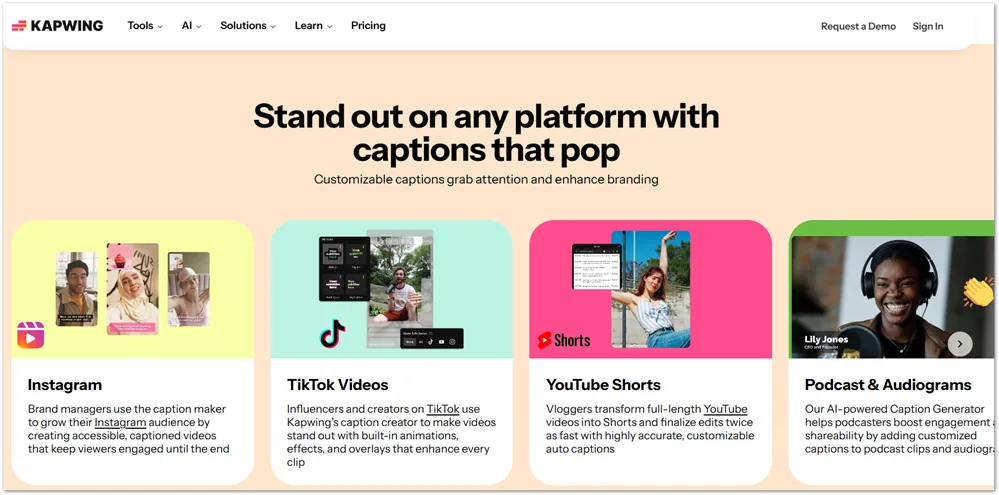
Kapwing is a browser-based video editor that covers a lot of ground – captions, trimming, resizing, templates, collaboration, and more. It’s built to be accessible for beginners while still giving teams enough to work with professionally.
Import options include uploading from your device, importing from Vimeo or Google Drive, and a handy feature on desktop that lets you scan a QR code to upload directly from your phone. Pasting a URL to import content does require a paid plan though, which is worth knowing upfront.
Caption accuracy is solid, around 95% for clear audio, which puts it on par with Descript. You get over 100 preset caption styles to choose from, with customization options for fonts, colors, animations, and even automatic emojis.
It also supports multiple speaker detection, with the ability to style each speaker’s captions differently. For teams, Kapwing’s brand kit lets you save your fonts and colors so every video stays on-brand without starting from scratch each time.
Export options include SRT and VTT files for uploading to platforms separately, or you can burn captions directly into the video. Language support covers 100+ languages for both auto-subtitling and translation.
One thing to keep in mind is that Kapwing runs on a credit system for AI features. The Pro plan gives you 1,000 credits per month and the Business plan bumps that to 4,000. Heavy users could find themselves limited depending on how often they use the AI tools.
Pros
Cons
Pricing: Free plan available. Pro $24/month or $16/month billed annually. Business $64/month or $50/month annually. Enterprise custom.
Best For: Teams and marketers who want a capable all-in-one editor with strong branding and collaboration tools built in.
7. Zeemo
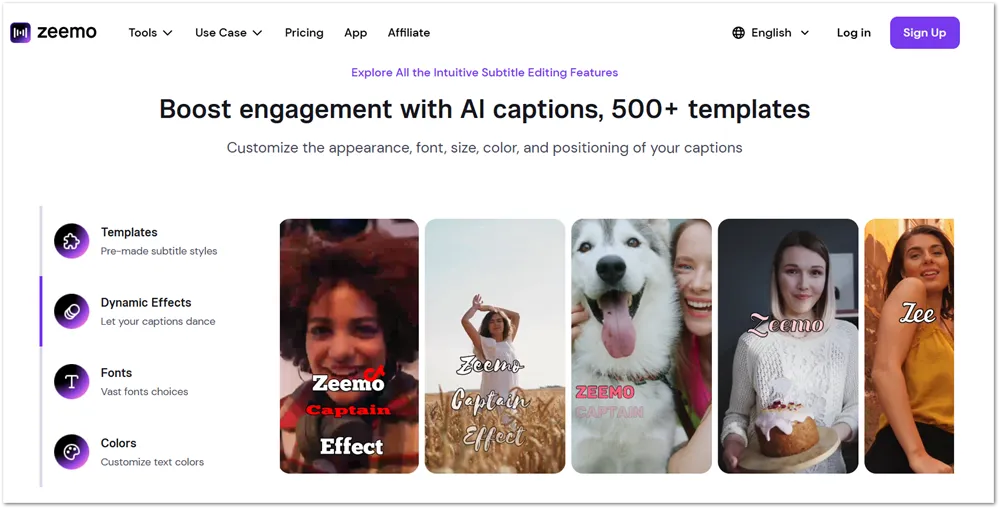
Zeemo started out as a caption-first tool and that focus still shows. It doesn’t try to be a full video editor. It zeroes in on accurate subtitles, strong visual effects, and multilingual support, and it does those things well.
It was pretty accurate on the video I tested. The website says it’s accuracy comes in at around 98%, which puts it comfortably among the better performers on this list.
Processing is fast, and the caption editor is very easy to use. Where Zeemo stands out visually is its dynamic caption effects – animated, styled subtitles built specifically for TikTok, Instagram Reels, and YouTube Shorts. If you want captions that do more than just sit on screen, Zeemo gives you that without a complicated setup.
Language support is extensive with 95 languages for caption generation and translation into over 113. That’s one of the wider ranges you’ll find among the tools tested here. You can also export as SRT or ASS files, in addition to the standard burned-in caption option.
So why didn’t I rank it higher?
The free plan is quite limited just 3 videos per month with a 1-minute cap per video and a watermark on exports. The Pro plan at $9.99/month removes the watermark and bumps you to 50 videos, but caps each video at 3 minutes, which makes it best suited for short-form content. For longer videos, you’d need the Expert plan at $14.99/month, which allows up to 5 hours per video and 4K exports.
Pros
Cons
Pricing: Free plan available. Pro $9.99/month, Expert $14.99/month, Business $29.99/month.
Best For: Short-form creators who want eye-catching animated captions with strong multilingual support at an affordable price.
8. Quso
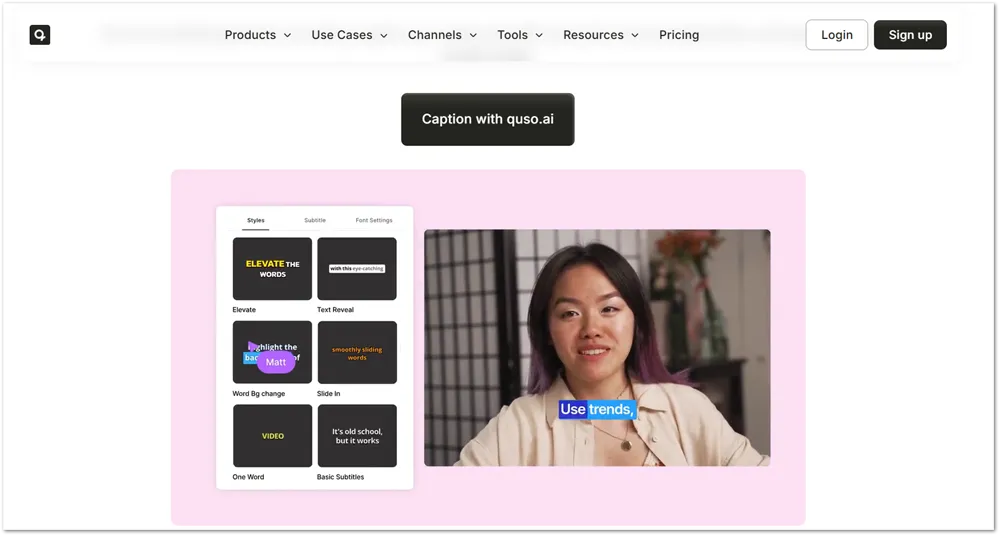
Quso.ai started as a video clipping tool (it was previously known as Vidyo.ai), and has grown into a full content repurposing platform. Captions are a core part of the workflow, not something added on as an extra.
Getting video in is simple. You can upload from your device, drop files directly from Google Drive or Box, or paste a YouTube or Google Drive link.
From there, Quso.ai generates captions automatically, and the editor is genuinely easy to use. In my testing, accuracy stood out. It handled uncommon words and brand names cleanly, which is exactly where a lot of AI caption tools fall apart. The 99+ language support means it’s a solid option for creators reaching international audiences too.
Caption customization is strong, with animated subtitle styles built for social media and the option to match your brand across videos using custom templates.
Beyond captions, Quso.ai earns its place on this list by doing a lot more in the same workflow. The AI clip generator pulls the best moments from long-form videos into short-form content ready for TikTok, Reels, and Shorts. You also get filler word removal, AI B-roll, AI avatars, and a social media scheduler to publish across multiple platforms without leaving the app.
The free plan includes 75 credits per month with 720p exports and a watermark. Paid plans start at $19/month, which removes the watermark and unlocks 1080p exports and full caption features.
Pros
Cons
Pricing: Free plan available. Lite $19/month, Essential $41/month, Growth $49/month. Annual billing saves 40–50%.
Best For: Content creators and social media managers who want accurate captions as part of a full repurposing and publishing workflow.
How To Choose the Right AI Caption Tool
With so many options out there, it’s easy to feel stuck. The truth is, the “best” tool depends on what you create and where you share it. Here are a few things to keep in mind before you decide:
1. Think about your platform goals
- YouTube creators usually want clean, accurate captions that improve SEO.
- TikTok and Reels creators need captions with style – think bold fonts, emojis, and animations.
- Business or LinkedIn creators often prefer subtle, professional subtitles.
Some tools, like Zeemo, have caption styles built specifically for certain platforms.
2. Accuracy vs. style
If you want your captions to look polished and professional, go with accuracy-first tools. But if your goal is to grab attention fast, lean toward tools that specialize in eye-catching, dynamic captions.
3. Budget
Free tools can work for quick tests, but they often limit exports or slap on watermarks. Paid tools usually give you higher accuracy and more customization. Decide if you need pro-level results or just something fast and simple.
Quick take:
If you’re a YouTuber, go with Submagic or Descript. If you’re making TikToks or Shorts, Submagic is built for that. Agencies or marketers? Veed.io and Quso.ai give you the versatility you’ll need.
Tips For Better Results
Even the best AI tools need a little human touch. Here are some simple ways to get captions that actually boost your videos:
1. Always proofread
I’ve seen comments on YouTube videos where people ridicule the video creator for spelling words wrong, especially names.
AI is fast, but it isn’t perfect. A quick scan for spelling, names, and slang can save you from embarrassing mistakes.
2. Add keywords naturally
Sneak in relevant keywords when editing your captions. This helps with SEO and makes your videos more discoverable.
3. Style your captions
The best caption tools all have styling options that allow you to pick fonts and colors that match your brand. Consistent styles make your videos instantly recognizable as yours.
4. Keep it short and easy to read
Break long sentences into multiple short lines. Your don’t want your viewers to have to pause the video just to read what’s on screen.
5. Test on different devices
Captions that look great on desktop can feel cramped on mobile. Preview on a mobile device how it looks before publishing to make sure they’re readable everywhere.
Follow these tips, and your captions won’t just be accurate, they’ll also be engaging, on-brand, and well optimized for growth.
Get AI Captions
If you’ve made it this far, you already know captions aren’t optional anymore. They’re how you keep people watching, reach a wider audience, and make sure your message lands whether someone’s watching with sound or scrolling in silence.
The tools on this list all get the job done in different ways. But if you’re looking for a starting point, Submagic is the one I keep coming back to. The accuracy is the best I’ve tested, the interface is clean, and you can go from upload to styled, ready-to-publish captions faster than any other tool here.
The best part? You can try it before you spend a dime. Submagic’s free plan lets you test it on your own videos and see exactly what it can do for your content.