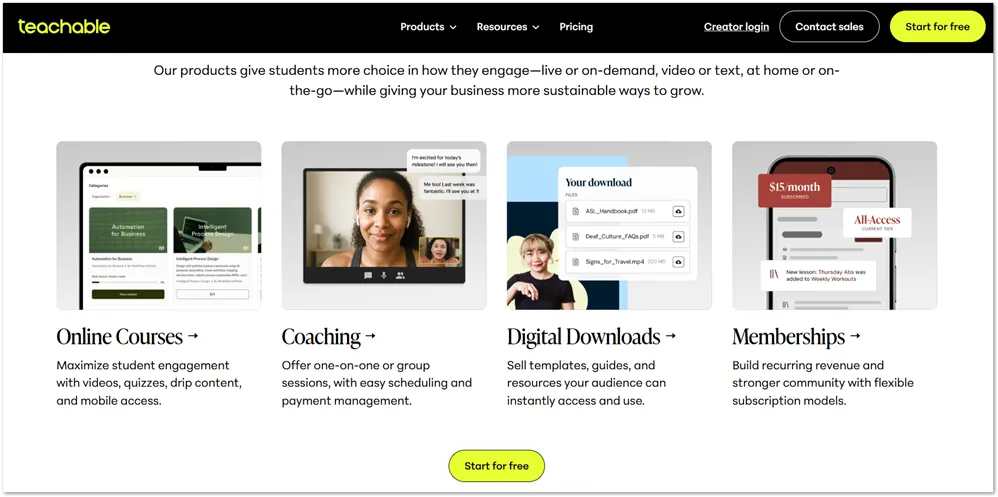
Teachable is an online platform that lets you turn what you know into something you can sell. That could be a video course, a coaching program, a digital download, or a combination of all three, all hosted in one place under your own brand.
It’s built for people who have real expertise and want to share it without spending weeks figuring out tech. You don’t need to hire a developer or stitch together five different tools. Teachable handles the hosting, the checkout, the student experience, and the payments so you can focus on building your actual product.
The platform has been around since 2014 and has become one of the more recognized names in the online course space. It sits in that sweet spot between simple drag-and-drop builders and full enterprise platforms – enough flexibility to build something professional, without a steep learning curve.
If you’ve been sitting on an idea for a course or coaching offer and the setup always felt like the hard part, Teachable is designed specifically for that problem.
They offer a 7-day free trial and I’ll tell you all about that below, who it’s for, how to get started, pricing and more.
This post may contain affiliate links. TrialBear earns commissions at no extra cost to you when purchases are made through links on this page. For more info, visit the disclosure page.
Teachable Verdict & Rating
Rating: 4/5 Bears 🐻🐻🐻🐻☆
Quick Verdict:
Teachable is a well-built platform for coaches and creators who want to sell courses, coaching, and digital products without dealing with a technical headache – though the Starter plan’s transaction fees are worth understanding before you commit.
Standout Indicators
- ✅ Courses, coaching, and digital products all in one place
- ✅ AI tools help you build and launch faster
- ✅ Clean interface with a low learning curve
- ❌ Starter plan charges 7.5% per transaction
- ❌ Some features locked behind higher tiers
- ❌ Credit card required to start the free trial
Quick Take
If you want to turn your knowledge into a sellable product and don’t want to spend weeks on setup, Teachable is one of the better platforms to start with. Just make sure you look at the plan pricing carefully – the transaction fees on the entry-level plan can add up depending on your volume.
Who Is Teachable Best For?
Teachable is built for one type of person: someone who has knowledge or a skill that other people would pay to learn, and wants a straightforward way to package and sell it online.
That covers a pretty wide range of people.
- A fitness coach who wants to offer a structured 8-week program.
- A graphic designer who teaches brand identity.
- A therapist who creates a self-paced anxiety management course.
- A business consultant who runs live group coaching.
What they all have in common is that they’re selling expertise – not physical products, not software, not a subscription to content they didn’t create.
If that describes you, Teachable is worth a serious look. The platform is especially well-suited for:
- First-time course creators who want to launch without hiring a developer or learning how to code
- Coaches who want to combine one-on-one or group sessions with digital course content
- Entrepreneurs and educators who already have an audience and are ready to monetize it with a structured product
- Creators moving off other platforms like Udemy who want more control over their pricing, branding, and student relationships
That said, Teachable isn’t the right fit for everyone.
If you’re looking to build a large membership community with heavy social features, there are platforms better designed for that. If you need advanced marketing automation built right in, you might find Teachable’s native tools a bit limited compared to something like Kajabi.
And if you’re not ready to drive your own traffic, the platform won’t do that part for you. Teachable gives you the store, but you still need to bring the customers.
What You Get During the Teachable Free Trial
Teachable’s 7-day free trial gives you access to a working version of the platform – not just a demo. You can actually start building your product from day one, which makes it genuinely useful for evaluating whether the platform fits the way you work.
Here’s what you can explore and build during the trial:
Courses
You can create a full online course with video lessons, text content, quizzes, and downloadable files. The course builder is drag-and-drop, so you’re organizing sections and lessons without touching any code. You can set it up as self-paced or structured with a specific schedule.
Coaching Products
Teachable lets you build coaching offers directly on the platform – session packages that students can purchase and book through an integrated scheduling tool. If coaching is your primary offer, you can set this up and see exactly how the student-facing experience looks.
Digital Downloads
Beyond courses and coaching, you can sell standalone digital products like PDFs, templates, workbooks, audio files. If you have something ready to go, you could technically have a product listed and ready to sell before your trial even ends.
Community
Teachable has a built-in community feature that lets you create a space for your students to interact. It’s worth exploring during the trial if community is part of your offer, so you can see whether it meets your needs or whether you’d want a separate tool for that.
What’s Limited or Excluded
The trial gives you real access, but there are a few things worth knowing upfront. You won’t be processing live payments during the trial, so you can build and preview everything but you’re not selling yet.
Some features, like advanced customization options and certain integrations, are tied to higher-tier plans rather than the trial itself. Once the trial ends, you’ll land on whichever plan you choose, and what’s available to you will depend on that plan’s feature set.
Get The Most Out of Your Teachable Free Trial
Seven days is enough time to get a real feel for Teachable but only if you go in with a plan. The creators who get the most out of the trial usually come in knowing exactly what they want to build and start from day one.
Decide what you’re building before you sign up
Before you even create your account, pick one product and commit to it.
A mini-course works well as a starting point. Choose one specific problem you can help someone solve in 3 to 5 short lessons. Something focused like “How to write a LinkedIn bio that gets responses” will serve you better than trying to map out your full signature course during a 7-day window.
If coaching is your main offer, set up a simple session package instead and walk through the booking flow as if you were a student.
Or if you already have a PDF, a template, or a workbook sitting on your hard drive, upload it as a digital download. This is exactly I did when I tested the platform and I had a product set up in an afternoon.
Use the AI tools on day one
If you’re building a course, go straight to the AI curriculum generator before you do anything else. Put in your topic, get a structure back, and use that as your building blueprint for the rest of the trial. It saves time and gives you something concrete to react to rather than starting from scratch.
Go through the student experience yourself
Once you’ve built something, even just a few lessons or a basic product page, switch perspectives and experience it as a student would. Teachable lets you preview your content, so use that.
You’ll notice things about the layout and the flow that you simply can’t see from the builder side.
Test the checkout process
Set up your pricing and walk through the checkout flow yourself. You won’t be processing a real transaction during the trial, but you can see exactly what your students will see when they go to buy.
If something feels off or confusing, better to catch it now.
Explore the dashboard and reporting
Even without real sales data, spend some time in the analytics section. Understanding where everything lives will save you time once you’re up and running, and it’s easier to learn the layout when there’s no pressure.
Contact support at least once
Ask a question – even a simple one – and see how they respond.
Support quality is one of those things you only discover when you actually need it, and the free seven days is the right time to find out.
Teachable’s AI Tools
Teachable has built AI tools directly into the platform, and they’re genuinely aimed at one thing: helping you build faster.
The most useful of these is the AI curriculum generator. You give it your course topic and a bit of context about your audience, and it produces a suggested outline with modules, lessons, and the structure of the whole thing.
It’s not going to write your course for you, but if you’ve ever stared at a blank screen trying to figure out how to organize everything you know about a topic, having a starting structure handed to you in seconds is actually pretty helpful.
From there, Teachable’s AI can also help you generate lesson descriptions and other supporting copy that fills out your course page. Again, it’s a starting point rather than a finished product. You’ll want to rewrite things in your own voice, but it removes the blank page problem at multiple stages of the build process.
Including quizzes in your lessons? This is possibly one of the best ways to use Teachable’s AI in your workflow.
For someone taking a 7-day trial, this matters more than it might seem. The biggest reason people don’t finish building their course isn’t that they lack knowledge – it’s that the organizational and writing work feels overwhelming before they even get to the teaching part.
These tools don’t eliminate that work, but they do lower the activation energy enough to keep you moving.
Things To Know Before You Sign Up
Every platform has fine print worth knowing before you hand over your credit card. Teachable is a solid product, but there are a few things that catch people off guard if they don’t look closely before the trial ends.
The Starter Plan Transaction Fee
This is the big one. Teachable’s entry-level Starter plan costs $39 a month, which sounds reasonable until you factor in that Teachable takes 7.5% of every sale you make on that plan. That’s on top of whatever Stripe or PayPal charges for payment processing.
To put that in real numbers, if you sell a $200 course, Teachable keeps $15 of that before payment processing fees even come into play. Sell ten of those in a month and you’ve paid $150 in transaction fees alone, on top of your $39 subscription.
At some point, upgrading to a higher plan with no transaction fees actually saves you money. It’s worth doing that math for your own numbers before you decide which plan to land on after the trial.
The good news is that the next tier up eliminates transaction fees entirely. So this isn’t a permanent limitation. It’s a pricing decision you’ll want to make with clear eyes.
Auto-Renewal
Your trial automatically converts to a paid plan when the 7 days are up. Since a credit card is required to start the trial, that charge will go through automatically unless you cancel before the deadline.
Set a reminder for yourself on day five or six so you’re not caught off guard.
Feature Access Depends on Your Plan
Some things you might explore during the trial – certain customization options, integrations, or advanced features – may not be available on the Starter plan once you convert.
It’s worth checking which features are tied to which plan before you build something around a tool that turns out to be locked behind a higher tier.
The Trial Doesn’t Include Live Sales
You can build and preview everything during the trial, but you won’t be processing real transactions. So while you can set up your product and go through the checkout flow yourself, you’re not going to make actual sales until you’re on a paid plan.
For most people that’s fine. The trial is about evaluating the platform, not generating revenue but it’s something worth knowing going in.
Signing Up for the Teachable Free Trial
The signup process is simple and takes just about five minutes from start to finish. Here’s exactly what to expect.
Step 1: Click “Start for Free”
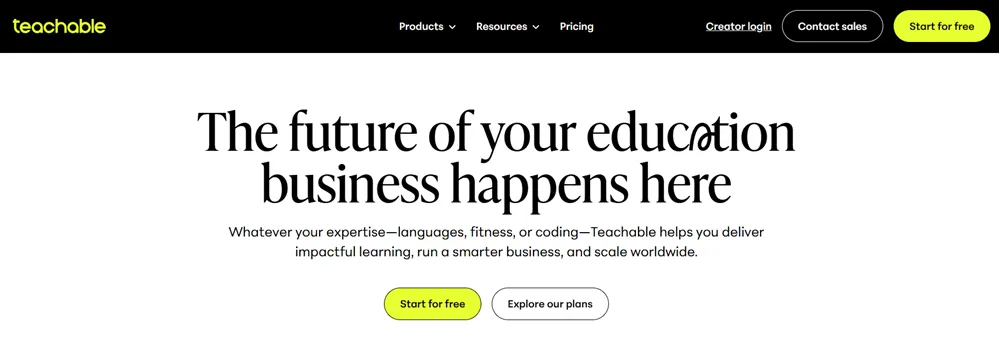
You’ll find this button on Teachable’s homepage and pricing page. Click it and you’ll be taken directly to the account creation screen.
Step 2: Create your account
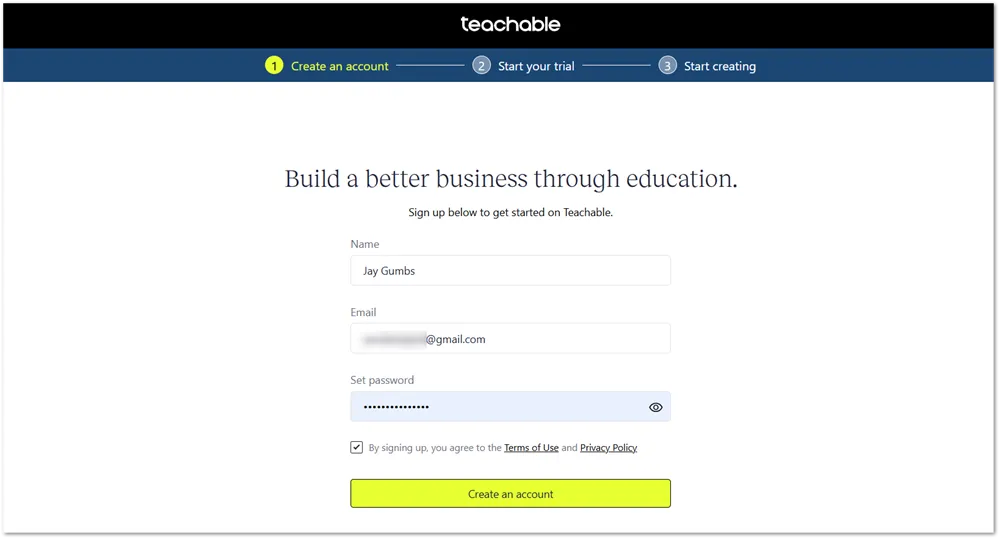
The first screen asks for your name, email address, and a password. Fill those in, agree to the terms, and click “Create an account.”
After submitting the form, you’ll receive an email asking you to confirm your signup email. Confirm and follow the instructions. You’ll be taken to the next step.
Step 3: Activate your trial
This is where your payment details come in. You’ll be asked for your full name, country, billing address, and credit card information.
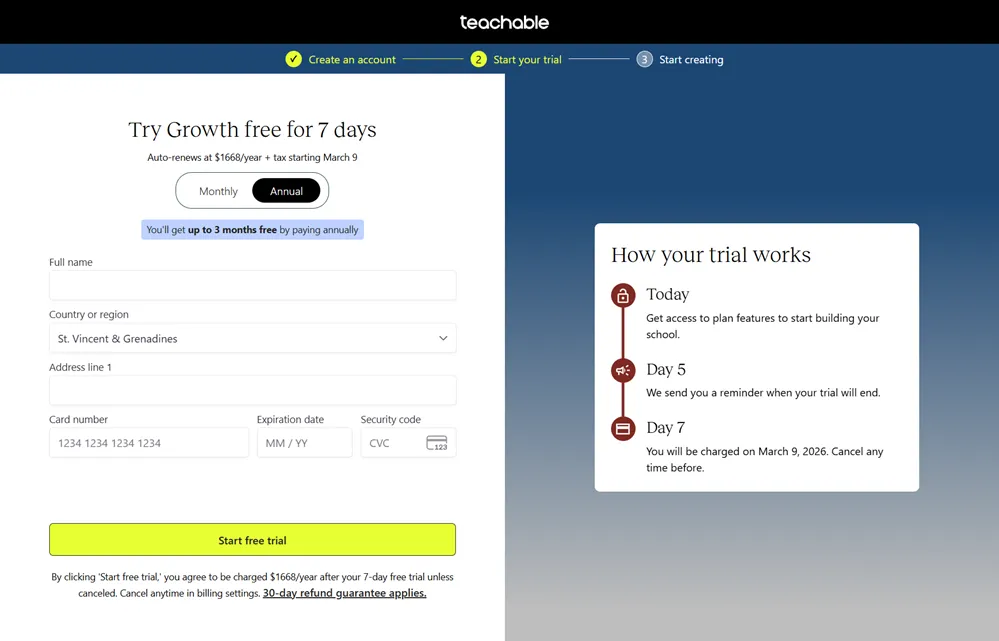
Before you enter your card, you’ll also need to choose between monthly and annual billing. Teachable shows a note here that paying annually gets you up to 3 months free, so it’s worth doing that math before you decide.
The plan you’re trialing will show at the top of the page. I actually chose the Growth plan but after confirming my email, the flow took me to the Builder plan. If you continue before confirming your email, you’ll stay on the plan you selected.
The price shown reflects whichever plan you selected. You won’t be charged until day 7, and Teachable sends a reminder on day 5 so you’re not caught off guard. There’s also a 30-day refund guarantee that applies if you do get charged.
Once you click “Start free trial,” your account is active and you can start building immediately.
Step 4: Start creating
You’re in. The next screen takes you straight into your Teachable dashboard where you can start building your first product.
What It’s Like To Use Teachable
The first thing you’ll notice when you land on the Teachable dashboard is that it doesn’t try to do too much at once. The layout is clean and the navigation is straightforward.
Your school sits front and center and the menu keeps things simple with just the essentials along the left side.
Interface and learning curve
Teachable has clearly put thought into making the platform approachable for people who aren’t technical.
The course builder is drag-and-drop, labels are plain English, and you’re never more than a couple of clicks away from whatever you’re trying to do.
If you’ve ever logged into a platform and immediately felt overwhelmed by options, Teachable is a different experience. Most people can orient themselves and start building within the first session without watching a single tutorial.
Mobile experience
Teachable works on mobile and has iOS and Android apps, though the full building experience is better on desktop. If you’re creating and editing content, you’ll want to use a computer. The mobile app is more useful for monitoring your school – checking sales, student activity, and notifications – once you’re up and running.
Customer support
Teachable offers email support across all plans. Higher tier plans get access to live chat and priority support, so response times will vary depending on which plan you’re on.
As mentioned in the trial tips section, it’s worth reaching out with a question during your trial so you know what to expect before you commit.
How Teachable Compares to the Alternatives
Teachable isn’t the only platform in this space, and depending on what you’re building, one of these alternatives might be a better fit.
1. Thinkific
Thinkific is the closest comparison to Teachable and my #1 recommendation for course platforms.
Both platforms let you build and sell courses, coaching, and digital products without needing technical skills.
The biggest practical difference is pricing structure. Thinkific charges no transaction fees on any of its paid plans, while Teachable’s Starter plan takes 7.5% of every sale. Thinkific’s entry plan starts at $49/month compared to Teachable’s $29, so you’re paying more upfront but keeping more of each sale.
Thinkific also offers a longer trial – 30 days versus Teachable’s 7.
2. Kajabi
Kajabi is the all-in-one option for creators who want email marketing, sales funnels, and automation built directly into the platform.
It charges no transaction fees and offers a 14-day free trial. The tradeoff is price – all three Kajabi plans cost more than comparable Teachable plans.
If you’re just starting out and don’t need advanced marketing automation yet, Kajabi can feel like paying for more than you need.
3. Podia
Podia is worth a look if you want more time to evaluate before committing.
It offers a 30-day free trial which is much longer than what Teachable offers, and its entry plan starts at $39/month. Like Teachable’s Starter plan, that entry price comes with a 5% transaction fee, so the same math applies.
In my opinion, what actually makes Podia strong is the website builder – it feels like the main product with everything else as extras.
Podia covers courses, downloads, coaching, webinars, and memberships, and its pricing across higher plans tends to come in slightly cheaper than comparable Teachable tiers.
Teachable Pricing After the Free Trial
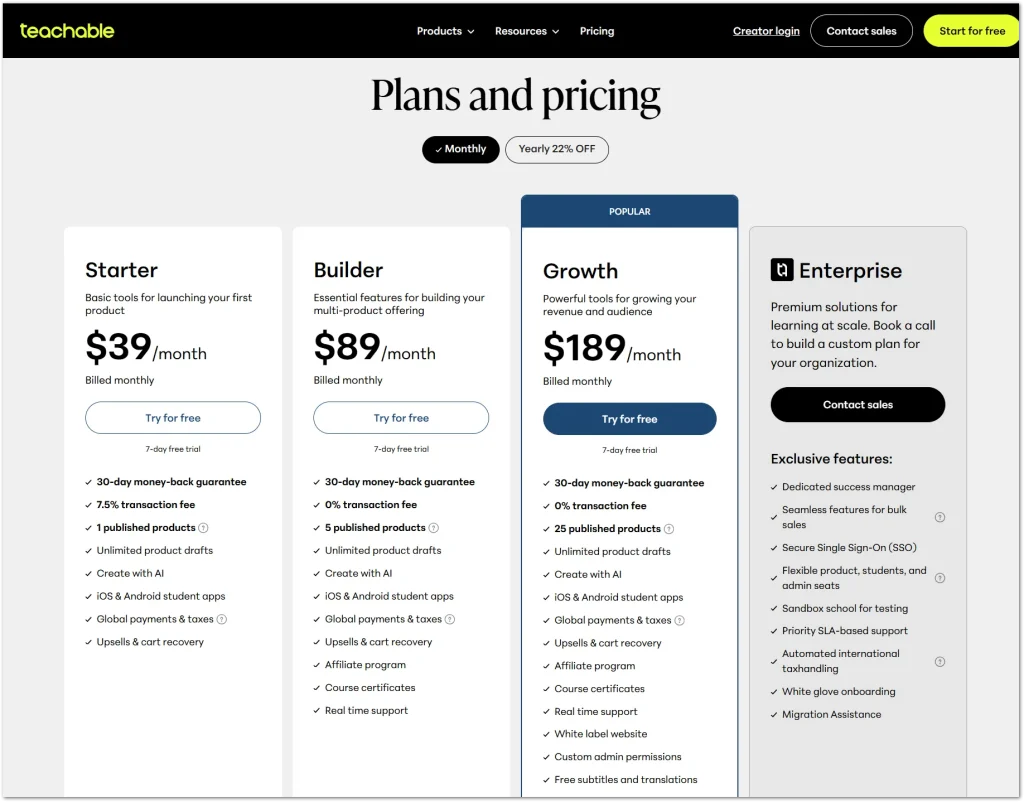
Once your 7-day trial ends, you’ll need to choose a paid plan to keep building. Teachable has three main plans:
- Starter – $39/month (or $29/month billed annually)
- Builder – $89/month (or $69/month billed annually)
- Growth – $189/month (or $139/month billed annually)
There’s also an Enterprise option for larger organizations that they can inquire about directly.
Here’s how the three main plans break down.
Starter ($39/month)
This is the entry-level plan. It gets you up and running with 1 published product, up to 100 students, unlimited product drafts, AI tools, iOS and Android student apps, and global payments.
The catch, as covered earlier, is the 7.5% transaction fee on every sale. If you’re just testing the waters with your first product and expect low volume to start, this plan is workable. But do the math on your expected sales before committing. At some point the transaction fees cost more than the upgrade.
Builder ($89/month)
This is where the transaction fees disappear. Builder gives you 0% transaction fees, 5 published products, up to 1,000 students, course certificates, an affiliate program, upsells and cart recovery, and real-time support.
For most creators who are past the “testing my first product” stage, this is the plan that makes the most practical sense.
Growth ($189/month) – Most Popular
Teachable’s most popular plan gives you everything in Builder, plus 25 published products, up to 5,000 students, a white label website, custom admin permissions, free subtitles and translations, and priority support.
If you’re running a proper course business with multiple products and a growing student base, this is the plan built for that.
Annual vs. Monthly Billing
Paying annually saves 22% across all plans. On the Growth plan that’s a $600 annual saving, worth factoring in if you’re fairly confident Teachable is the right platform for you.
All plans come with a 30-day money-back guarantee, so even after the trial ends there’s a window to change your mind.
How to Cancel Your Teachable Free Trial
If you decide Teachable isn’t the right fit, cancelling before day 7 is straightforward. Teachable sends a reminder on day 5, but it’s worth setting your own reminder too so you’re not rushing at the last minute.
Here are the steps to cancel:
- Log into your Teachable account and open your school dashboard
- Click Settings in the left-hand navigation
- Click Billing – this is where your current plan and subscription details live
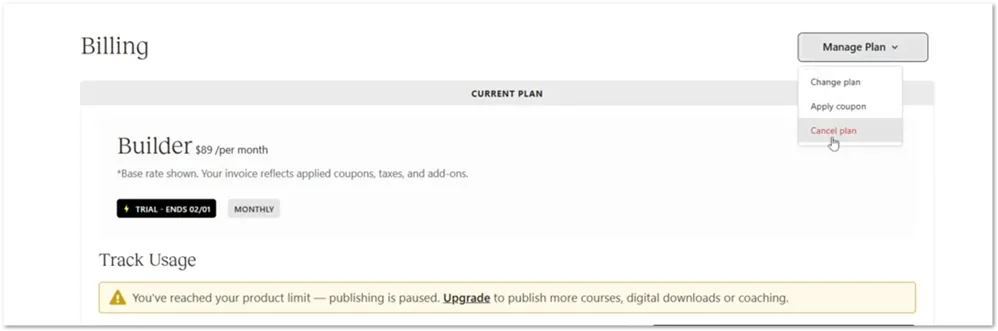
- In the top right corner of the Billing page, click Manage Plan (see screenshot above)
- A dropdown will appear with three options – Change plan, Apply coupon, and Cancel plan. Click Cancel plan
- Teachable will show you what cancellation means for your account and give you the option to continue without cancelling. If you still want to cancel, confirm your decision
- You’ll see an on-screen confirmation that your subscription has been cancelled
A couple of things to keep in mind
Your cancellation deadline is before day 7 – that’s when your card gets charged. If you miss the trial window, Teachable does offer a 30-day money-back guarantee, so you’re not completely out of options if you forget.
Also worth knowing: cancelling removes your access to paid plan features, but your account and the content you’ve built during the trial doesn’t disappear immediately. Check Teachable’s current terms for details on how long your data is retained after cancellation.
Try Teachable For Free
Teachable is a solid platform for coaches and creators who want to build and sell knowledge-based products without getting tangled up in tech.
The course builder is clean, the platform covers courses, coaching, and digital downloads in one place, and the AI tools genuinely help you move faster, especially if you’re building your first product.
The 7-day trial gives you enough time to build something real and get a feel for whether the platform fits the way you work. It’s not the longest trial in this space, so going in with a plan matters. But if you use the time well, you’ll know by the end of the week whether Teachable is worth committing to.
The one thing to sort out before you upgrade is which plan makes sense for your situation. The Starter plan’s 7.5% transaction fee is worth understanding upfront, depending on your pricing and expected volume, moving to Builder sooner rather than later could actually save you money.
If you’re ready to stop thinking about building your course or coaching offer and actually start, the trial is the right next step. You can have something built and ready to evaluate within your first few days.