Should you use Teachable to sell your online course?
This Teachable review will help you decide, so read all the way to the end to find out if this course platform is right for you.
Teachable is built for creators who want to sell online courses, coaching programs, and digital products without dealing with a technical setup. The platform gives you everything in one place – a website to sell your products, built-in payment processing, and tools to manage your students and grow your business.
Teachable also has AI tools built directly into the platform to help you build faster. Whether you’re mapping out a course curriculum or writing product descriptions, the AI features are designed to remove the blank page problem and keep you moving.
If you want to try Teachable before committing, they offer a 7-day free trial on all plans. A credit card is required to start, but you won’t be charged until day 7. It’s enough time to build something real and get a feel for whether the platform fits the way you work.
This post may contain affiliate links. TrialBear earns commissions at no extra cost to you when purchases are made through links on this page. For more info, visit the disclosure page.
What Is Teachable?
Teachable is an online platform for creators who want to share their knowledge and get paid. The platform allows you to create and sell courses, coaching products and digital downloads all in one place.
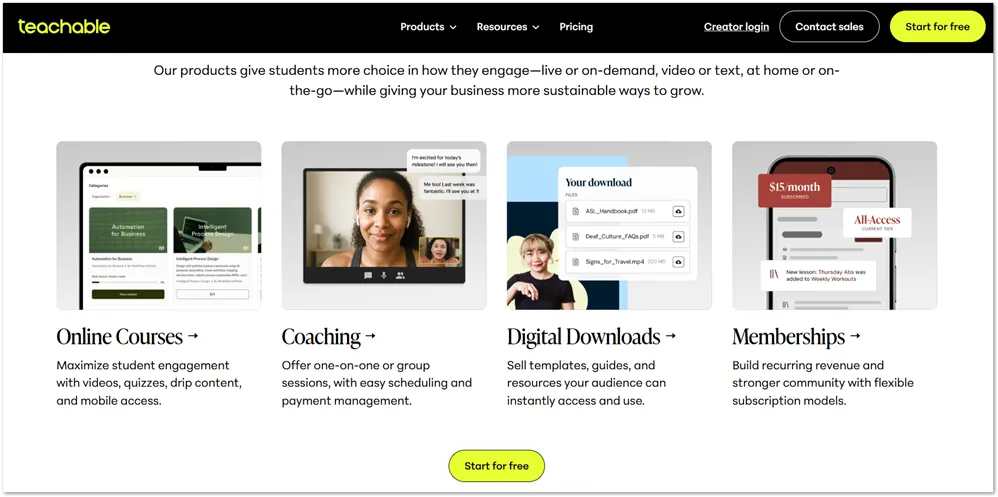
Beyond the core creation tools, Teachable gives you everything you need to run your online course business – a website to promote your products, built-in payment processing, and sales features to help you maximize revenue.
Teachable is one of the most popular course platforms today and is a worthy alternative to other popular platforms like Thinkific, Kajabi, Podia and LearnWorlds. That said, your decision should be based on what you want to offer. Teachable focuses on courses, coaching, and digital downloads. If you also want to sell webinars, podcasts, or memberships, other platforms may be a better fit.
Getting started is easy. Teachable offers a 7-day free trial on all plans so you can test the platform before committing. A credit card is required to start, and you won’t be charged until day 7.
Paid plans give you access to a full suite of features such as:
- Unlimited product drafts
- iOS and Android student apps
- Global payments and tax handling
- Upsells and cart recovery
- Affiliate program management
- Course completion certificates
- AI tools for course creation
- Community features
- Custom domain
- Email support across all plans
- Live chat support on higher plans
Plans start from $39/month for a Starter Plan and go up to $189/month for the popular Growth Plan. You can also choose to pay annually for a 22% savings on any plan.
Who Is Teachable For?
Creators of all different sizes use Teachable to share their knowledge and earn money. From bloggers and YouTubers to big corporate organizations, they all use the platform to educate their audiences.
Some recognizable names that use Teachable include:
- Shopify
- The New York Times
- Intuit
- Pearson
- University of Pennsylvania Law School
- GetResponse
- Pat Flynn of Smart Passive Income
Teachable is particularly well suited for beginners. The platform is easy to get started with and doesn’t require any technical skills. If you’re a coach, course creator, or entrepreneur who wants to package and sell your expertise without spending weeks on setup, Teachable is worth a serious look.
Plans start at $39/month on the Starter plan, or $29/month when billed annually. If you’re price conscious, it’s worth noting that the Starter plan carries a 7.5% transaction fee on sales. Moving up to the Builder plan at $89/month eliminates that fee entirely, which can actually save you money depending on your sales volume.
Teachable also handles taxes automatically, which is something most other course platforms don’t offer. If tax handling matters to your business, Teachable is one of the few platforms that takes care of it for you.
Teachable Interface
The Teachable user interface is one of the best I’ve seen from all the top course platforms. The navigation is simple and points to the most important features you’ll need as an administrator.

The clean interface has a left navigation menu which reveals a sub-menu when you select any of the items. The left navigation has three clear sections with one section dedicated to creating Teachable products.
In the above screenshot, the Get Started area gives users an easy way to do some of the most essential tasks when it comes to getting up and running with your course website. Here, you can name your school, customize your domain, manage your branding, set up payments or get started with your landing page or course creation.
Most of the items on the Get Started page can be found in the settings and site menu if you want to change them later.
The dashboard is another view that presents a snapshot of what’s going on inside your school. Here you can check out a chart of new signups and easily switch to see other data such as:
- revenue
- earnings
- course sales
- active students
- lecture completions
- course completions
Dashboard cards will also show you these numbers at a glance for the day or for the current month. There are also handy links to different areas of Teachable where you can get help such as the Knowledge base, the weekly live webinar and the Teachable Blog.
Teachable’s admin interface is very easy to use and never gets overwhelming. Help center files are just a click away with the convenient Help button in the lower right-hand corner of each page. There is also a help menu item on the left menu that has more information on how to get the help you need.
Student Interface
The student interface is also very nice and keeps your students engaged. Students can take private notes directly on the video they’re watching as well as start discussions and receive feedback from the course instructor.
Students may also use the picture-in-picture feature on the video player so that they can browse other tabs and more while viewing lectures.
Some functions that are available on the desktop web interface though may not be available in the Teachable iOS app.
Teachable Features
Teachable isn’t as feature-rich as some of the other course platforms but the main features are well-designed and easy to use.
The main focus is on the creation tools so the course builder, coaching and website builder tools seem to get the most attention.
Here is a run-through of how these main features work and I’ll also give my personal opinion.
1. Course Builder
The course builder of course is the star of any course creation platform. It should be easy to use and intuitive.
You can access the course builder from anywhere in your dashboard as Teachable makes it easy for you to get started with the course creation process.
On the Get Started page, there is a card that prompts you to “create a course”. On the admin dashboard, you’ll find a “Create New Product” button in the top right corner. You can then choose whether you want to create a course, coaching product or digital download.

Finally, you can launch the course manager from the “Courses” menu item in the left navigation and create courses from the course manager page.
The course builder is presented as a wizard-type builder where you can answer questions and fill in the steps to build out your course.
The first step is to name your course.

Here, you can just name your course by adding the title and then select an author if you have multiple authors. If it’s just you, then your name will be auto-filled and you can click continue.
At this point, your course has been created and you can now edit it through the course manager. Clicking continue sends you directly to the AI curriculum builder where you can quickly generate lessons and lectures to save time.

Teachable allows you to bulk upload your content or you can just add them in each new lecture as you build out your course.
You can easily rename existing sections and lectures as well as add new ones where needed.

When adding a lecture, you can choose from a number of content types. These types include:
- video
- text
- file (PDF, audio, etc)
- quiz
- code example
- custom code
- upsell ( ie. add coaching sessions to your lectures)
Teachable provides a link to their knowledge base so that you can learn more about using the AI curriculum builder.
The course manager is also where you can price your course and also manage how your course looks on the overview page.

Pricing options include:
- giving free access
- one time fee
- payment plan
- subscription for recurring payments
In the pricing settings, you can enable “limited product access duration” to give students a free trial of your course. They will lose access after the specified amount of time expires.
Course design templates allow you to display your course using a number of different layouts.
Adding course details
The final step to getting your course online is to add the course information that you’ll need to display on the sales page. These details can be added on the information page and include:
- course image – you can also set a separate image for the iOS app.
- course title, subtitle and category
- course author – you can add additional authors with images and bio
- course compliance – requirements for students to advance through the course
- layout settings – show/hide progress bar, etc
You can then publish your course and preview the sales page and curriculum as both a student or public viewer.
The course builder is very easy to use and allows you to build out your curriculum, add flexible pricing and add publishing details without any technical knowledge. Links to help files are always available if you should get stuck.
2. Coaching
Teachable also offers coaching as a product. This can be an upsell to a course or it can be a standalone offer. Coaching is a great way to develop one-on-one relationships with students and offer personalized help and training.
Adding coaching in Teachable is just as easy as adding a course. You can easily add it from the coaching menu link in the left sidebar. Then you can hit the “new coaching” button on the resulting page to start the coaching product builder.

The coaching product builder is another wizard that lets you build your coaching offer in 5 steps. Just fill in the fields in each step to create your coaching offer.
The first step, as always, is to name your coaching offer.

The next step is to set up how you will receive your clients. There are three options to choose from depending on which setup is best for you.

Step 3 is to set a price for your coaching offer. Here you have all the same options as a course. You can offer coaching services:
- for free
- for a one-time fee
- on a payment plan
- on a subscription basis
When you choose one of these options, you’ll fill out the details which can appear on the pricing page including the price and description of what your clients get.
Next, you’ll set a start date. There are two options here. You can set the start date as the enrollment date or a fixed date. Teachable guides you on what is best for either option.

Finally, you’ll customize your first milestone which is the first session your clients will see.
The form allows you to enter a title such as “Welcome!” Then you can add a description that can include a pre-recorded video embedded within your message.

You can also add a schedule to the milestone. Teachable integrates natively with Calendly so you can have the client schedule a date and time for the coaching session. If you however don’t use Calendly, there are other options.
After the 5-step setup of your coaching product, you’ll then be able to add details such as a thumbnail, another author and your Calendly API key if applicable.
The coaching manager allows you to easily add coupons, order bumps, edit pricing and pages where your offer appears.
Overall, the process of setting up a coaching product in Teachable is very easy. I had a coaching offer up in under 10 minutes.
3. Digital Downloads
Teachable also allows you to sell or give away digital downloads. As an example, you can give away a PDF guide as a lead magnet to build a list for when you want to launch a course.
You can offer podcasts, audio, ebooks, images, spreadsheets and other documents as digital downloads for sale. These can have their own sales pages.
To get started with digital downloads, you’ll find the link in the left menu under products or see the “create a digital download” card in the “Get Started” tab.

It’s great that Teachable offers digital downloads for sale. Previously, they were only available to give away but you now have the opportunity to earn money from more than just courses and coaching.
4. Website Builder
Teachable gives you a website to promote your courses and other products. The website-building experience is a little different on Teachable as I didn’t see any templates.
With Teachable, you have one default layout that you can customize any way you feel like. You have options like changing the colors, font, removing the Teachable branding, re-arranging the layout, sections and replacing elements like images and more.

Product pages are automatically built when you publish a product. You can edit them in the page editor and add them to the navigation. There are also other default pages such as legal pages, thank you pages and checkout pages that are a part of your site.
You can add your logo, favicon and school thumbnail on the Theme manager page in your dashboard.

To edit your homepage and other pages, you can preview the site and then hit edit in the top right-hand corner. The page editor allows you to edit the different sections on the page – replacing images and text areas as well as changing layouts.

You can also modify the design of the different sections by changing their colors, alignment, padding and more. A settings wheel at the top of the editor allows you to customize your header section, show/hide the footer and edit the metadata to add your SEO title and description.
If you have development skills or know HTML and CSS, you can even go further with your site design as Teachable allows you to do these modifications.
One thing I noticed missing from Teachable is the ability to blog. Although it’s not a native feature and there are no integrations for this, if you have a DropInBlog account, you can easily add a blog to your website.
Customizing your website on Teachable might take some getting used to but it’s simple enough once you figure it out. Teachable also points you to the help files in the knowledge base where there are detailed articles on customizing your school’s website.
5. Email Marketing
Teachable creators on paid plans can send emails to their students. The email marketing feature lets you compose custom emails, create segments and view stats such as open rates and more without the need for integrations.
To start using the email marketing feature, you can click on the “Emails” link in the left menu. You can design your emails using one of the templates in the Template Editor.
The email history feature lets you look at open rates, click rates and bounces so you can see what emails are working. You can also view history for automated emails such as failed payments and drip content release emails here as well.
If you don’t want to use Teachable’s native email tool, you can also use available integrations for Sumo, Mailchimp, ActiveCampaign, Aweber and ConvertKit. They seem to be adding more integrations for email marketing which is great because they only had three when I checked out Teachable months ago. You can use Zapier though to connect with other tools.
6. Marketing & Sales
Teachable has a number of sales and marketing features to help you get more sales and maximize revenue. You can utilize any or all of these features in your marketing efforts.
Besides a website where you can capture leads and market to them using native or integrated email marketing, here’s what’s available to creators.
- Coupon codes – you can offer your products at a discounted price by creating a coupon code for either a percentage off or a dollar amount reduction. The coupon manager allows you to manage coupon settings.
- Order bumps – you can offer an additional product for purchase on any product order page which can help increase revenue.
- Free trials – when setting prices for courses, you can toggle the “limited product access duration” button to offer a free trial.
- Bundles – Teachable allows you to bundle multiple products together and sell them at one price.
- Referral program – To help grow your audience and increase your reach, you can set up a student referral program that will reward students for referring others to your school. This is similar to the affiliate program except that both the student and referred user get rewarded with a discount and not a commission.
These are all great features that you can use to get more out of your marketing efforts and increase your revenue.
7. Affiliate Marketing
From the Professional plan onward, you can utilize affiliate marketing to get others to promote your courses. Creators can add affiliates manually or create an affiliate application form on your website to allow for self-registration.
In your affiliate admin panel, you will be able to review all applications and all approved affiliates. You can manage the affiliate settings through your admin panel by setting commission rates, cookies and other settings.
There are lots of customization options to play with in Teachable’s affiliate program management. It’s one of the better affiliate program setups I’ve seen from course platforms that offer an affiliate program.
What’s Missing?
Teachable gives its creators all the necessary tools to earn by sharing their knowledge through course creation. However, when compared with other top course platforms, there are some noticeable features missing.
Integrations
When I first checked out Teachable, there weren’t many integrations available. Especially glaring were the limited number of email marketing integrations. Now, there are several email marketing integrations available including Sumo, MailChimp, Aweber, ActiveCampaign and ConvertKit.
Given that you can do native email marketing on Teachable, you now have a range of options to choose from especially if you already use an external email marketing platform. For those that aren’t available as Teachable integrations, you can always use Zapier.
The other integrations available are:
- Google Analytics
- Segment
- Facebook Pixel
Blogging
If you want to do blogging on your Teachable website to help increase search engine traffic by targeting relevant keywords to your business, you’ll find that there isn’t a native blogging feature available.
There is a solution for this also. Since you can add HTML/CSS to your site, you can use DropInBlog to add a blog to your website. Simply get the code from DropInBlog and add a page on your website where you’ll drop the code. DropInBlog will adapt to your website’s layout and you can add posts and have normal blog functionality like a regular blog.
Teachable has some missing features but they do have what it takes to run a course business online. They also have tax handling which is something that most other platforms do not have so it’s really a matter of weighing your options and choosing what is best for you.
Teachable Support & Help
Help and support are important especially when you’re learning a new platform or implementing a new business model.
For creators on Teachable, there are several ways to get help and support as well as education on topics such as using the platform and creating courses and coaching products.
All creators have access to email support no matter which plan they’re on. Paid users from the Professional and up can get a live chat agent. Access to the private community called Teachable:HQ on Circle is also an option for all paid users.

Let’s take a look at some of the other help and support options available to creators. These include:
- Teachable Knowledge Base
- Weekly Live Q&A
- Live Group Coaching Events
- Teachable Blog
- Teachable:U
Knowledge Base
Teachable’s Knowledge Base is where you can get detailed help on using the platform. You’ll find lots of helpful articles with screenshots and gifs on how to use every feature.
The knowledge base is organized into different categories that you can use to narrow your search depending on what you need help with.
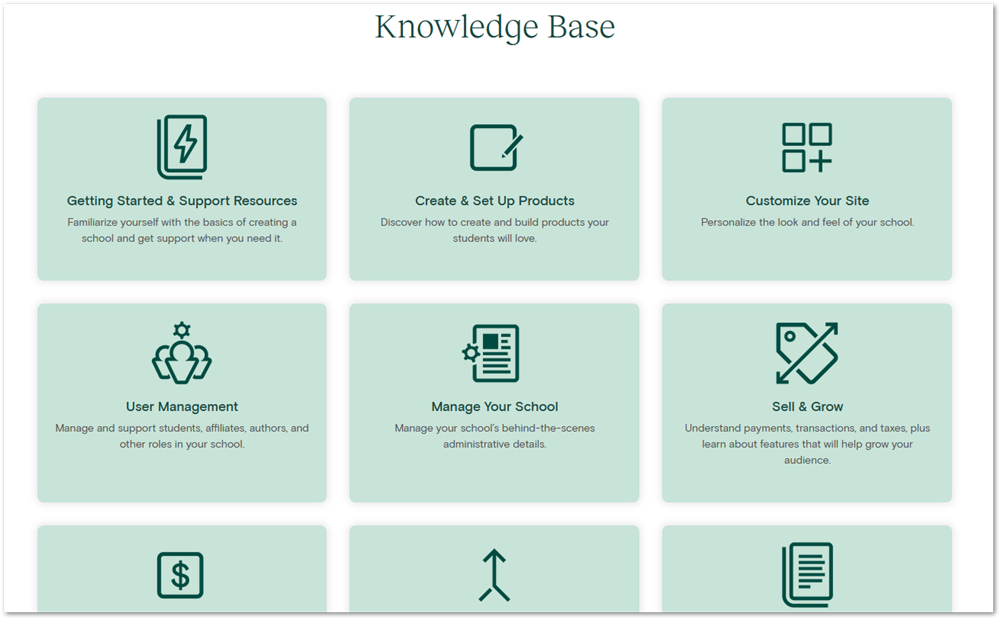
You can then dig further into the topics to find help on specific tasks. For example, when I click on “Create and Set up Products” above, I’ll be able to see how to set up coaching products under their own topic.

A convenient search bar is also available on the Knowledge Base home page and also on all article pages so that you can search for the help you need.
Creators should spend time going through Knowledge Base files to familiarize themselves with how certain features work on Teachable. In any case, you’ll probably end up going through articles as they’re linked to from the admin panel when using features.
Teachable Blog
The Teachable blog is another great source of information. It is like a magazine for all things on course creation and selling.

Everyone has access to this helpful resource even persons who do not have a Teachable account. Here, you’ll find lots of interesting expert articles on various topics such as money, creativity, mindset, and marketing as well as news and updates.
Teachable:U
Teachable:U is Teachable’s training school for creators. This is similar to the training on other platforms like Thinkific Academy and Kajabi University.
While training on other platforms is available to all plan users including those on a free plan, Teachable:U courses are only open to paid subscribers.

Once you’re a paid member on at least the Basic plan, you can unlock access to courses. The Teachable:U school uses the same Teachable website template layout available to creators and the student experience for courses is the same. So if you want a preview of how everything will look, you can check out Teachable:U.
The most important benefit though is the education you’ll get on using the platform to build a course business. There are cohort courses that you can enroll in and there are replays of previous cohort courses. Inside you’ll find a wealth of information that will help you to master Teachable as a course platform.
Weekly Live Q&A / Coaching Sessions
A weekly live Zoom webinar is available for creators on Professional and Business plans where Teachable will answer all creator questions live.
You’ll need to RSVP to join one of the webinars usually held on Mondays, Wednesdays or Thursdays.
Similarly, you can RSVP to join a group coaching session held by a customer success coach. These are live and interactive and can help you understand the platform more.
There are a lot of support and help available on Teachable, which is why it’s one of the top course platforms for creators who want to earn a living sharing their knowledge.
Teachable Plans & Pricing
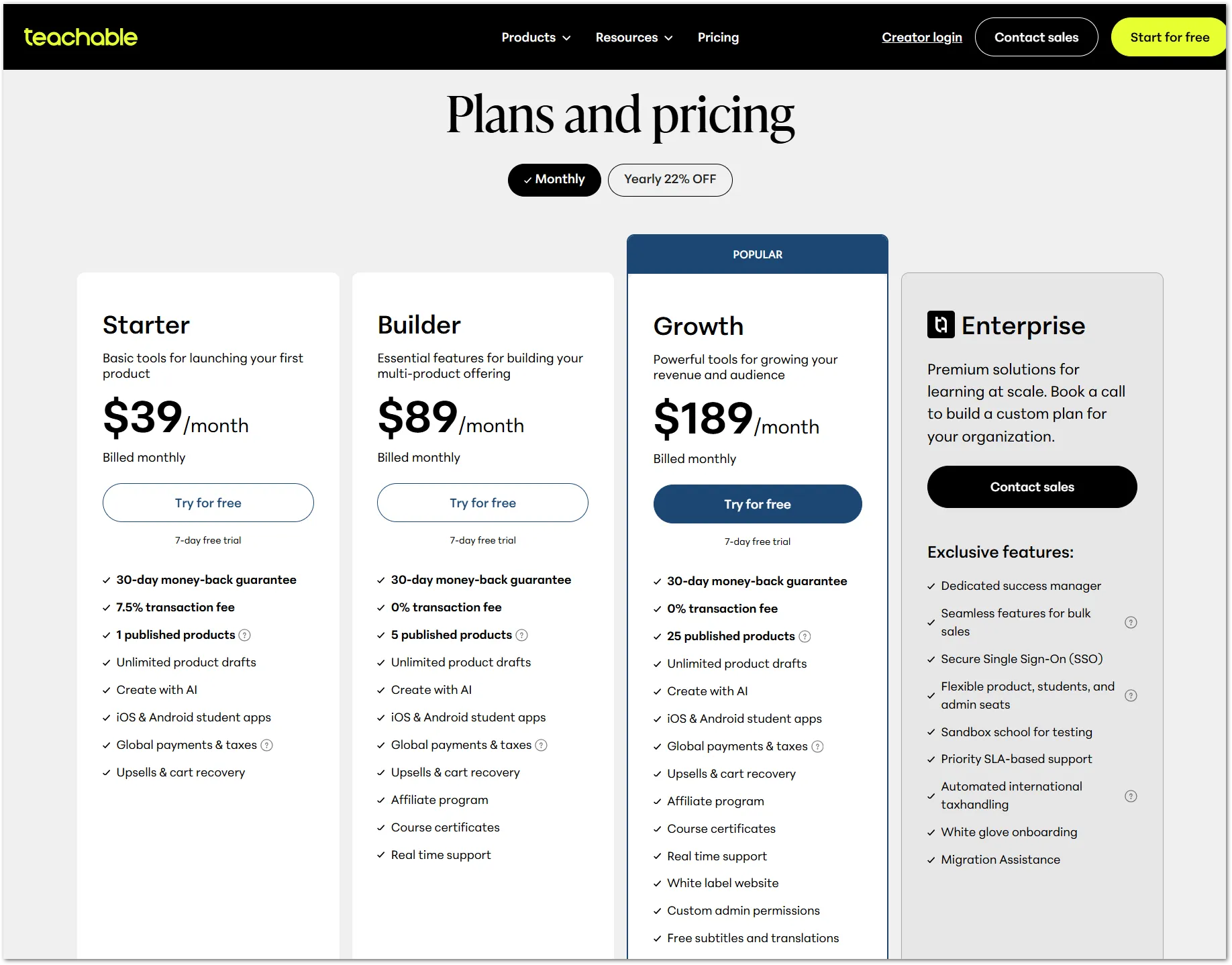
Teachable has three paid plans – Starter, Builder, and Growth – plus an Enterprise option for larger organizations. All three paid plans come with a 7-day free trial, and there’s a 30-day money-back guarantee across the board. You can choose to be billed monthly or save 22% by choosing annual billing.
Here’s how the plans break down:
- Starter – ($39/month; $29/month when billed annually)
- Builder – ($89/month; $69/month when billed annually)
- Growth – ($189/month; $139/month when billed annually)
Starter ($39/month)
This is the entry-level plan for creators launching their first product. You get 1 published product, up to 100 students, unlimited product drafts, AI tools, iOS and Android student apps, global payments, and tax handling.
The important thing to know here is the 7.5% transaction fee on every sale. If you’re just getting started with low sales volume it’s workable, but as your sales grow the fees can add up quickly. At some point upgrading to Builder actually costs you less.
Builder ($89/month)
This is where the transaction fees disappear. Builder gives you 0% transaction fees, 5 published products, up to 1,000 students, course completion certificates, an affiliate program, upsells and cart recovery, and real-time support.
For most creators who have moved past their first product, this is the plan that makes the most practical sense.
Growth ($189/month)
Teachable’s most popular plan. You get everything in Builder plus 25 published products, up to 5,000 students, a white label website, custom admin permissions, free subtitles and translations, and priority support.
If you’re running a course business with multiple products and a growing student base, this is the plan built for that.
The one thing to sort out before you choose a plan is the transaction fee math on Starter. A $39/month plan sounds like the obvious starting point, but if you’re making consistent sales the 7.5% fee can cost more than the difference between Starter and Builder. Run your own numbers before you decide.
Teachable Pros and Cons
No platform is perfect and Teachable is certainly no different. There are things that I love about Teachable, like their user interface and things that I don’t like so much, like transaction fees on a paid plan.
Here’s a side-by-side of Teachable’s pros and cons.
Teachable Pros
Teachable Cons
Teachable in my opinion provides just enough for creators using their platform to get by with creating courses and coaching products. They do offer tax handling which is something I haven’t seen with other platforms.
My biggest gripe is the fact that you have to pay transaction fees on a paid plan. The Starter plan for $39/month isn’t where I would recommend starting if you upgraded from a free to a paid plan. Simply because you’re not paying just $39. Those 7.5% transaction charges can add up and cost you more than if you were on the Builder plan which is $89/month.
Teachable Alternatives
As you can see, Teachable has its pros and its cons. What may be the perfect setup for one creator, another may find too restrictive or inadequate. Maybe you want more than just courses and coaching or you’d rather have a platform that has communities built in.
Whatever the reason, you may want to look into alternatives to Teachable. Here are 5 of the best Teachable alternatives currently available.
1. Thinkific
When it comes to course platforms, Thinkific is one of the best options you can go with. Like Teachable, it covers courses, coaching, and digital downloads, but it also includes built-in communities and membership features natively.
Thinkific also has lots of integrations via their app store that you can use to add even more features that are not on their official feature list. You can integrate with apps you already use and third-party apps that allow you to offer more to your students.
Thinkific charges 0% transaction fees on all paid plans, which gives it an edge over Teachable’s Starter plan. Plans start at $49/month or $36/month when billed annually. If you want more time to evaluate before committing, Thinkific also offers a longer 30-day free trial compared to Teachable’s 7 days.
2. Kajabi
The main difference between Kajabi and Teachable is the pricing. Kajabi’s entry plan costs significantly more than Teachable’s Starter plan, and there’s no free plan on either side.
What you get for that higher price is one of the most complete all-in-one platforms available – courses, coaching, digital downloads, memberships, podcasts, webinars, and some of the strongest built-in email marketing and sales funnel tools of any course platform.
There are no transaction fees on any Kajabi plan. If the higher pricing works for your budget, you can start with a 14-day free trial before committing.
3. Podia
Podia is a solid alternative for creators who want more time to evaluate a platform before paying. Where Teachable gives you 7 days, Podia offers a 30-day free trial, the longest of these five alternatives. Both platforms now require a credit card to start their trials.
Podia covers courses, coaching, digital downloads, webinars, and memberships. The entry plan starts at $39/month and carries a 5% transaction fee, similar to how Teachable’s Starter plan works. Higher Podia plans have no transaction fees and tend to come in slightly cheaper than comparable Teachable tiers.
4. LearnWorlds
LearnWorlds is worth considering if you want a longer trial window and a more interactive course experience. They offer a 30-day free trial and no credit card is required to get started, which makes it the lowest-friction trial of the five options here.
Pricing is competitive with Teachable and there are no transaction fees on any paid plan except the entry Starter plan at $29/month.
If you’re looking for a course player with built-in interactivity – think clickable videos, interactive ebooks, and assessments – LearnWorlds has more of that built in than Teachable does.
Final Words
Teachable gives creators a clean, well-designed platform to sell courses, coaching, and digital downloads without getting buried in technical setup. The AI tools are a genuine addition that help you build faster, and the overall experience – from the course builder to the student interface – is one of the better ones in this space.
The 7-day free trial is enough time to build something real and get a feel for whether the platform fits the way you work. Just make sure you cancel before day 7 if it’s not for you, as your card will be charged automatically when the trial ends.
On pricing, my recommendation is to skip the Starter plan unless you’re expecting very low sales volume to start. The 7.5% transaction fee can cost you more than you’d think once sales pick up. The Builder plan at $89/month eliminates that fee entirely and adds enough useful features to make it the smarter starting point for most creators.
Teachable may not be the most feature-rich platform in this space, but it does what it’s designed to do very well. If your focus is on selling courses, coaching, and digital products without unnecessary complexity, it’s a platform worth taking seriously.