Amazon Prime Video isn’t just one streaming service — it’s a hub where you can subscribe to over 100 additional channels without ever leaving the app. Everything gets billed through Amazon, managed in one place, and watched without switching between apps.
The process is simple once you know where to look, but it’s not always obvious the first time — especially the difference between content that’s included with your Prime membership and content that requires an extra subscription.
This guide walks you through exactly how to add a channel on any device, how to claim a free trial when one’s available, and how to cancel if you decide it’s not for you.
This post may contain affiliate links. TrialBear earns commissions at no extra cost to you when purchases are made through links on this page. For more info, visit the disclosure page.
What’s Included With Prime vs. What Costs Extra
This is the part that trips people up, so it’s worth getting clear on before you start clicking around.
When you sign up for Amazon Prime or Prime Video, you get access to Amazon’s own library — original series, licensed movies, live sports, and more. That content is included in your membership at no extra charge.
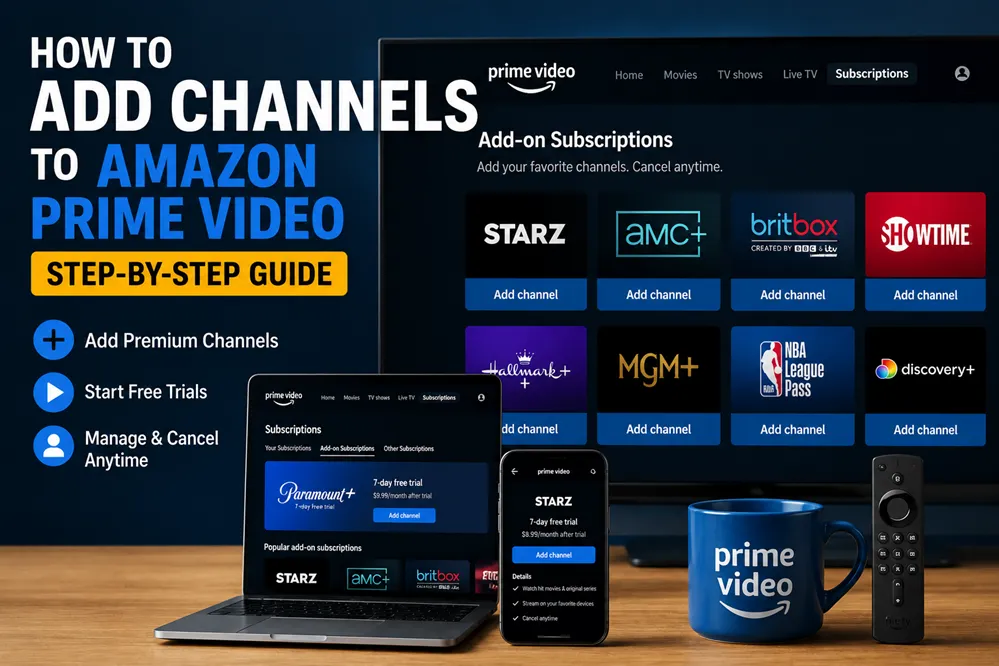
Prime Video Channels are different. On Prime Video, you’ll find these under Subscriptions. They’re third-party streaming services — HBO Max, AMC+, BritBox, Paramount+, Shudder, BroadwayHD, and over 100 others — that you can add on top of your existing Prime membership for an additional monthly fee. Each channel has its own price, its own content library, and its own free trial (if one is available).
Here’s a simple way to think about it:
| Included with Prime | Prime Video Channels | |
|---|---|---|
| Cost | Part of your Prime membership | Extra fee per channel |
| Content | Amazon Originals, licensed titles | Third-party network content |
| Examples | Reacher, The Boys, Thursday Night Football | HBO Max, AMC+, BritBox, Shudder, BroadwayHD |
| Free trial | 30 days (new Prime members) | Usually 7 days per channel |
| Cancel | Cancels your whole Prime membership | Cancels just that channel |
The key thing to remember is that cancelling a channel doesn’t cancel your Prime membership, and cancelling Prime doesn’t automatically cancel any channels you’ve added. They’re managed separately, which is actually useful — you can drop a channel you’re done with and keep everything else exactly the same.
What You Need Before You Start
Before adding a channel subscription, make sure you have:
- An Amazon account with Prime or Prime Video.
You need either an Amazon Prime membership ($14.99/month or $139/year) or a standalone Prime Video subscription ($8.99/month) to access Prime Video Channels. A regular Amazon account without either won’t give you access. - A payment method on file.
Amazon charges your default payment method when a free trial ends or when you subscribe directly. Make sure your card details are current before you start. - The right device for adding the channel.
You can add channels through a browser, the mobile app, or a TV app — but the browser method is the one I use because it’s the most straightforward. If you hit any confusion on mobile or TV, desktop is the one to default to.
How To Add a Channel on Desktop or Browser
When I’m doing free trials for TrialBear, I always use the desktop method because I can see everything clearer including the terms and confirmation screens. This is the easiest route and the one I’d recommend for first-timers.
- Go to Amazon Prime Video and sign in to your Amazon account.
- From the top navigation menu, click on “Subscriptions.”
- Browse the channel lineup or use the search bar to find a specific channel (e.g., MUBI, MGM+, Curiosity Stream).
- Click on the channel you want to add.
- On the channel page, click “More details” to see if there is a free trial.
- Click “Start your free trial” if a trial is available, or “Subscribe” if there’s no trial offer.
- Review the pricing details on the confirmation screen — this shows you what you’ll pay after any trial period ends and when billing starts.
- Click “Start your free trial” or “Subscribe now” to confirm.
That’s it. The channel is immediately added to your Prime Video library and you can start watching right away.
How To Add a Channel on Mobile (iOS or Android)
The mobile process is nearly identical, with one thing worth knowing upfront: if you’re adding a channel through the iOS app specifically, Apple may charge a slightly different price than Amazon’s listed rate due to App Store fees. To avoid this, it makes sense to add the channel through a browser first, then watch in the app.
- Open the Prime Video app on your phone and sign in.
- Tap the menu icon (usually three lines or your profile icon) and look for “Subscriptions” or browse to a channel directly through the search bar.
- Tap the channel you want.
- Tap “Start your free trial” or “Subscribe.”
- Confirm your payment details and tap to complete the signup.
Once subscribed, channel content appears in your main Prime Video library alongside everything else.
How to Add a Channel on TV (Fire TV, Roku, Apple TV, Smart TVs)
Most Smart TVs and streaming devices support the Prime Video app and let you add channels directly from your TV. The navigation varies slightly by device, but the general path is the same.
- Open the Prime Video app on your TV or streaming device.
- Navigate to “Subscriptions” from the main menu at the top of the home screen.
- Find the channel you want to add by browsing or searching.
- Select the channel and choose “Start free trial” or “Subscribe.”
- Follow the on-screen prompts to confirm.
Shortcut for Fire TV users: If your remote has Alexa, just say “Find History Vault on Prime Video” (or whichever channel you’re looking for) and Alexa will pull it up directly.
One thing to note: if you run into any friction on the TV path — unclear pricing, subscription not showing up, payment errors — just go to Prime Video on a browser and add it there. The TV app is convenient but the browser version gives you the clearest view of what you’re agreeing to.
How To Claim a Free Trial When Adding a Channel
Most Prime Video channels offer a 7-day free trial for new subscribers. Here’s what to know before you claim one:
The trial prompt shows up on the channel subscription page.
If a trial is available, the button will say “Start your free trial” before it says anything about payment. If you only see a “Subscribe” button without a trial mention, the trial either isn’t available for that channel or you’ve already used it on that account.
You still need a payment method on file.
Even for free trials, Amazon requires your card details upfront. You won’t be charged during the trial, but billing kicks in automatically the day after it ends unless you cancel.
Set a cancellation reminder before you confirm.
The easiest way to avoid an unwanted charge is to set a phone reminder for a day or two before the trial ends — not on the last day, but a little before, to give yourself time to cancel without rushing.
These are the channels on TrialBear that currently offer free trials through Prime Video:
All these channels offer a 7-day free trial except where indicated.
How To Cancel a Channel You’ve Added
Cancelling a Prime Video channel takes about a minute and can be done at any time — including during a free trial.
- Go to Amazon Prime Video and sign in.
- Click on your account name in the top right corner and select “Memberships & Subscriptions.”
- Find the channel you want to cancel under “Prime Video Subscriptions.”
- Click “Cancel Channel” next to it.
- Follow the confirmation prompts.
Your access continues until the end of your current billing cycle (or until your trial ends, if you cancel during a trial). You won’t be charged again after cancellation.
You can also cancel directly from the channel’s subscription page in Prime Video — just navigate back to the channel and look for the “Cancel” option where the subscribe button used to be.
FAQs
You need either Amazon Prime ($14.99/month or $139/year) or a standalone Prime Video subscription ($8.99/month). A standard Amazon account without either won’t give you access to Prime Video Channels.
Yes, though if you’re using an iPhone, be aware that Apple may apply additional fees through the App Store. To get the exact price Amazon advertises, add channels through a browser from the Prime Video store instead.
Prices can vary depending on whether you’re subscribing through the Amazon website, the iOS app, or another device. Always check Amazon Prime Video directly for Amazon’s listed price. Promotional pricing is also common — some channels run limited-time discounts that may have expired by the time you’re signing up.
The subscription button on the channel page will say “Start your free trial” if a trial is available. If it only says “Subscribe,” either no trial is currently offered or you’ve already claimed one on your account. TrialBear tracks which channels have active trials — check the links in the free trial section above.